

ClickFix warning for Mac users: Fake CAPTCHA screens can steal data via Terminal commands
IT experts have warned Mac users against fake CAPTCHA and troubleshooting pages that direct them to paste commands into the Terminal.



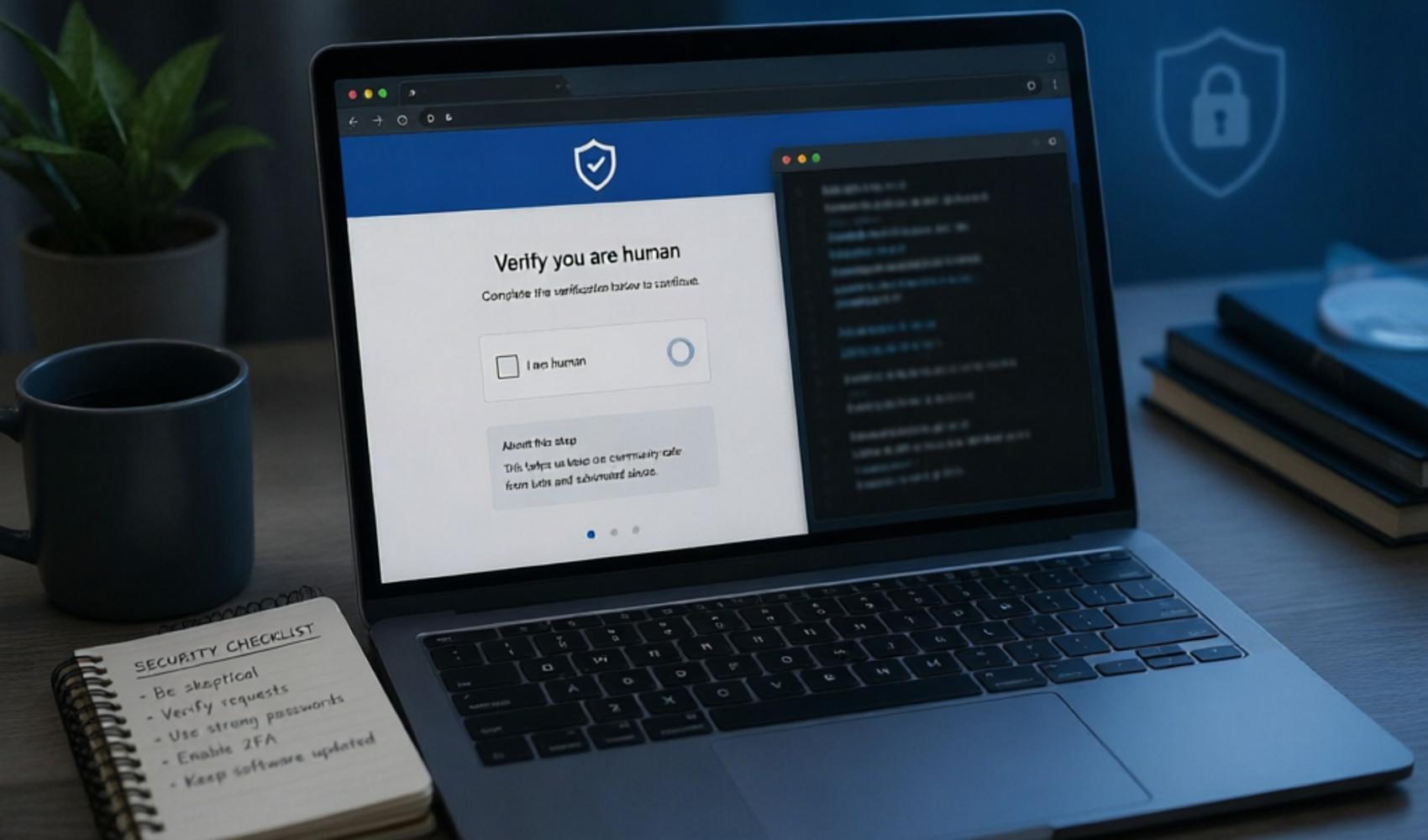
IT experts have stated that ClickFix attacks, which deceive users with fake CAPTCHA verifications and “troubleshooting” pages, are now targeting Mac users as well. In these attacks, the user is asked to open the Terminal application, paste the command on the screen, and run it.
According to experts, this method works differently from classic malware download scenarios. Instead of forcing the user to download malware directly, attackers guide the user to run the command themselves. Following this step, browser data, saved passwords, iCloud information, and data related to cryptocurrency wallets can be put at risk.
The type of attack called ClickFix relies on social engineering methods. Fake verification screens, download warnings, or installation instructions can create the impression in the user that they are performing a legitimate operation. Although macOS security layers such as Gatekeeper and code signing provide protection against many threats, these protections can become ineffective when the user runs the command with their own account.
A real CAPTCHA verification will never ask you to open the Terminal, paste a command, or disable security settings.
WHAT SHOULD YOU WATCH OUT FOR?
Experts emphasize that Mac users should be particularly careful against Terminal redirects coming from web pages. It is not a standard practice for a website to make you open the Terminal, copy a command, or change security settings for human verification.
- - Close web pages that ask you to open the Terminal; do not run commands under the pretext of CAPTCHA or verification.
- - Do not paste commands from sources you do not know into the Terminal. Be especially cautious of long commands containing expressions such as `curl`, `bash`, `zsh`, `osascript`, `python`, or `base64`.
- - Treat instructions that ask you to turn off macOS security warnings for installation or downloading as suspicious.
- - If you think you have run such a command, disconnect the device from the internet; change the passwords for your email, Apple account, password manager, and financial accounts from another secure device.
- - Keep your operating system and security software up to date to increase the likelihood of detecting malicious software.
Experts state that awareness is critical because the attack relies more on convincing the user than on technical complexity. Therefore, not rushing through suspicious verification screens, questioning the source before running a command, and rejecting unexpected security instructions are cited as the most fundamental protection steps.
News Source: 12punto
Most Read

Price hike for Netflix Turkey plans

Market values updated in the Süper Lig

'Fatma Betül Sayan Kaya changed 60 chiefs of staff'

29 more workers dismissed at Üsküdar Municipality

'The league starts in a week, and there is no MHK'

Fear has gripped the mountains!

The amount Melis Sütşurup earned from the fund is staggering

Supreme Court ruling on retirement affects millions!

A magnificent farewell to Bosnia and Herzegovina legend Edin Dzeko

The American dream: Work and Travel